If you have ever worked on a character rig with more than a handful of shape keys — and found shortcuts confusing on top of that — the free Blender Shortcut Tool has all pose mode keys in one place., you already know how quickly things fall apart. The default Blender panel shows you one object at a time. You switch objects, scroll through keys, switch back. If you have a face rig split across multiple meshes like most character rigs are, you are jumping between objects constantly just to do basic things. It gets old fast.
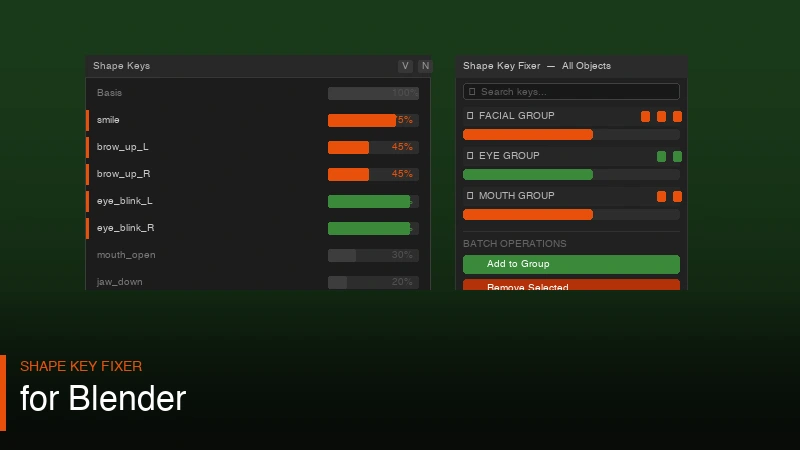
Shape Key Fixer is an addon that pulls all shape keys from every object in your scene into a single panel. One place, everything visible, fully controllable. That is the whole idea and honestly it is the kind of thing that should have been in Blender by default.
What It Actually Fixes
The scene-wide browser is the main thing. You open the panel and you can see shape keys across all your objects at once. You do not have to select anything or switch between objects. It is all just there. For animators working on facial rigs this alone is worth it.
But the grouping system is what makes it genuinely useful for production. You can create groups like Facial, Eyes, Mouth and put related keys into each one. Then you get a group slider that drives all the keys in that group together. So instead of tweaking ten individual keys to get a smile, you move one slider. That is a real time saver when you are doing pose to pose animation.
The batch operations are also solid. Adding or removing shape keys across multiple objects at once is the kind of thing that normally takes forever. Here you just select, apply, done. The search and filter works well too, especially once your scene has 50 or 60 keys spread around.
Who Is It For
Character artists and facial riggers will get the most out of it. For texture painting on those same characters, Easy Texture Paint handles the UV setup automatically. If your workflow involves complex multi-mesh rigs, morph targets for game characters, or detailed facial animation, this addon removes a lot of friction. Game developers dealing with blend shapes for real-time characters will find the batch tools particularly useful.
If you are just doing simple objects with one or two shape keys it is probably overkill. But the moment your shape key list starts to feel unmanageable, this is exactly the kind of tool you will be glad exists.
Worth trying if shape key management has been slowing you down. The Animator Mode for group toggling during pose-to-pose work is a nice touch and the search actually works the way you would expect it to.
How to Set Up Shape Key Groups Step by Step
Getting the most out of Shape Key Fixer starts with organising your keys into logical groups before you begin animating. Here is a practical workflow that works well for character rigs with multiple meshes.
First, open the Shape Key Fixer panel in the N-panel (press N in the 3D viewport and look for the addon tab). You will see all shape keys from every object in your scene listed in one place. If you have a face mesh, a body mesh, and eyelid meshes, all of their keys appear together. That is the first win.
Next, create your groups. Click the New Group button and name it something descriptive — Brows, Eyes, Mouth, Jaw, Cheeks. Then drag the relevant keys into each group. The drag-and-drop interface is clean and the grouping sticks between sessions. Once your groups are set up, each one gets a master slider. Moving the Mouth slider adjusts all the keys inside it simultaneously, which is exactly what you want during blocking passes when you are roughing in expressions quickly.
Enable Animator Mode when you are in the posing phase. This lets you toggle entire groups on and off with one click, which is useful when you want to isolate one area of the face without accidentally adjusting keys in another group. Combine this with Blender's Action Editor and you have a genuinely efficient facial animation pipeline.
Batch Editing Shape Keys Across Multiple Objects
The batch operations in Shape Key Fixer solve one of the most annoying problems in multi-mesh character work: making the same change across multiple objects without repeating yourself.
Say you have a character where the body, shirt, and hair are all separate meshes. You want to add a "Squash" shape key to all three for a cartoon-style squash-and-stretch effect. Normally you would select each object, go to its shape key panel, add the key, name it, and repeat. With Shape Key Fixer you select all three objects in the scene panel, use the batch add function, name the key once, and it appears on all three simultaneously with consistent naming.
Removing keys across multiple objects works the same way. The search filter comes in here too. If you search for "Brow" you see every brow-related key across every object in your scene. You can select them all and apply a batch operation without touching the unrelated keys. For production character rigs with 80 or 100 shape keys spread across multiple meshes, this alone can save an hour of tedious work per character.
The rename function is equally useful. Consistent naming matters for game engine exports, where blend shape names need to match exactly across LOD meshes. Rename once in Shape Key Fixer and it updates everywhere you specified.
Shape Key Fixer for Game Character Blend Shapes
If you are creating characters for games rather than film animation, Shape Key Fixer handles a slightly different workflow. Game engines like Unity and Unreal use blend shapes (the equivalent of Blender shape keys) for facial expressions, lip sync, and blend-shape-driven clothing variations.
For Unity, blend shape names need to be consistent across your LOD meshes. LOD0, LOD1, and LOD2 all need identical shape key names or the engine will not drive them correctly. Using Shape Key Fixer's batch rename on all three LOD meshes ensures consistency without manually checking each one.
For Unreal Engine, morph targets work similarly. When you export to FBX, Blender includes shape keys as morph targets automatically. The problem is that Unreal is case-sensitive about morph target names and expects them in a specific order for certain plugins. Shape Key Fixer gives you a clean organised list where you can verify names and order before export, which avoids the common frustration of getting into Unreal and finding morph targets are missing or misnamed.
The group system also helps when you are building a character with ARKit-compatible blend shapes for face tracking. ARKit requires 52 specific blend shape names. You can create an ARKit group in Shape Key Fixer, put all 52 required keys into it, and quickly verify that every key is present and correctly named before your final export. A clear visual list is much easier to audit than Blender's default one-object-at-a-time panel.
Frequently Asked Questions
Does Shape Key Fixer work across all versions of Blender?
It is built for Blender 3.x and 4.x. Earlier versions of Blender have different Python API structures so the addon is not tested or supported on versions below 3.0. If you are on a current version of Blender you should have no issues.
Can I use the group sliders in Blender's NLA editor or Action Editor?
Yes. Group sliders create actual shape key value drivers that are keyframeable the same way individual shape key values are. You can key them in the timeline, include them in actions, and use them in the NLA editor for non-linear animation workflows.
What happens to my shape key groups if I open the file on a machine without the addon?
The shape keys themselves and their values are saved in the .blend file and will be there regardless of the addon. The group metadata is stored in custom properties on the objects. If the addon is not installed, Blender will not display the groups in the fixer panel, but the underlying shape keys remain intact and accessible through Blender's default properties panel.
Does it support shape keys on mesh objects only or also on curves and lattices?
Shape Key Fixer focuses on mesh objects, which covers the vast majority of use cases. Blender's shape key system works differently for curves and lattices and the addon does not extend to those object types currently.
Get Shape Key Fixer and stop juggling shape keys across objects one at a time.
