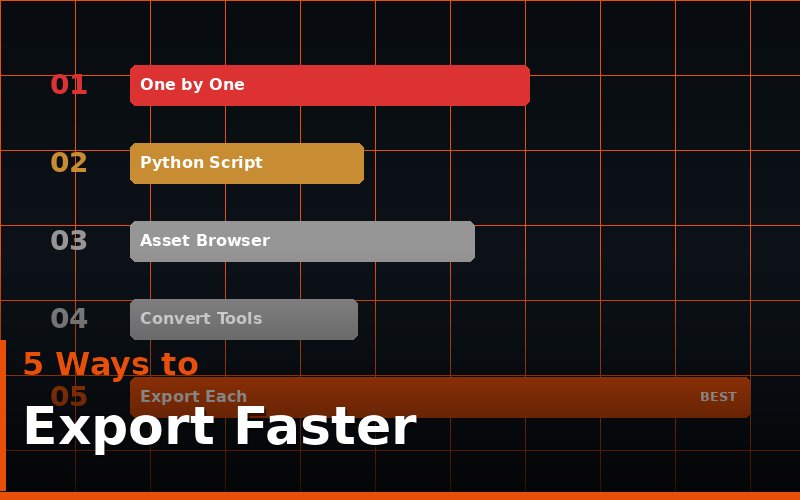
Most Blender artists export assets the slow way without realizing it. Every trip through File > Export, every manual filename entry, every settings check that resets between sessions — all of it adds up. For a single asset it is fine. For a production pipeline with dozens of meshes going to a game engine or render farm, the time lost is significant.
There are five ways to make this process faster. Some are habits, some are settings, and one is an addon that removes the friction entirely. Here is each one, ranked from least to most impactful.
The Fastest Way to Export Assets in Blender
Export Each handles all of this automatically. One click exports every object or collection to its own file with consistent settings every time.
Other Habits That Speed Up Asset Exports
Method 1: Use Export Presets
Blender's export dialogs let you save presets. Once you find the right FBX or GLTF settings for your target engine — correct axis, correct scale, apply transforms on — save them as a named preset. Next time you export you click the preset and every setting is already right. This eliminates the most common source of export errors: settings drift between sessions. It takes two minutes to set up and saves time on every single export after that.
Method 2: Organize with Collections Before You Export
The fastest manual workflow is to put every exportable asset into its own collection, organized clearly in the outliner. Then you can toggle collection visibility and export with Limit to Visible Objects checked. It is still one export per asset, but you spend zero time hunting through the scene to find what to select. Name your collections to match your intended filenames and the workflow becomes almost mechanical.
This also helps when your scene has helper objects — rigs, empties, cameras, lights — that should never be exported. Keep all export-ready assets in dedicated collections and keep everything else in a separate helpers collection. One toggle and your scene is export-clean.
Method 3: Apply Transforms Once at the Start
Apply all transforms (Ctrl+A > All Transforms) on every asset before you start exporting. Not right before export — at the start of your finishing pass. Unapplied transforms are one of the most common causes of scale and rotation problems in game engines, and fixing them after export means re-importing and re-placing assets in the engine. Fifteen seconds now saves thirty minutes later.
Method 4: Automate Naming with a Consistent System
Decide on a naming convention and enforce it early. Common conventions used in game development include a prefix system: SM_ for static meshes, SK_ for skeletal meshes, T_ for textures. Your Blender object names should match your intended export filenames exactly. When you use Export Each, it uses the object name as the filename automatically — so clean names in Blender means clean filenames on disk without any manual renaming.
Frequently Asked Questions
What is the fastest format for Blender game asset export?
FBX is the most compatible across Unity, Unreal Engine, and Godot. GLTF is growing in support and produces smaller files. For most game pipelines, FBX with Apply Scalings set to FBX All is still the safest and fastest to get right.
Does exporting to a separate folder help?
Yes. Keeping all exports in a dedicated /exports folder separate from your .blend files makes it easy to grab the right version of an asset and avoid accidentally referencing a stale file. Export Each lets you set this folder once and all exports go there automatically.
Why do my assets come in at the wrong scale in Unity?
This is almost always a unit scale issue. Blender's default unit scale is 1 (1 BU = 1 metre). Unity also uses 1 unit = 1 metre, but FBX export can introduce a 100x scale if Apply Scalings is not set correctly. Use Apply Scalings: FBX All on export. You can also use the Blender Units Calculator to verify your measurements before exporting.
If you are working in Blender and exporting is slowing you down, also check the common beginner export mistake and FBX export for game engines., check out Export Each. One click exports every object or collection to its own file automatically.